Animated network lanes with packets flowing through them, as a sluice gate lowers over the middle lane and its packets slow to a trickle

Sluice

See which apps are using your connection right now - and give each one a slider. Per-app bandwidth limits, a firewall, alerts and usage history, one click from the clock.

14 days free, everything on R49 a month, billed yearly Or R999 once, for life

A backup that swallows the whole line, a game update in the middle of a Teams call, an app you've never heard of talking to a server you don't know. Sluice lives in the Windows tray and shows the ten apps using the most bandwidth this second, each with its own limit slider. Drag one and that app slows down - downloads and uploads both - while everything else carries on. Rules do it for you on a schedule, the firewall keeps unwanted apps off the network entirely, and the history shows where your data went.

At a glance

The busiest apps, each with a slider

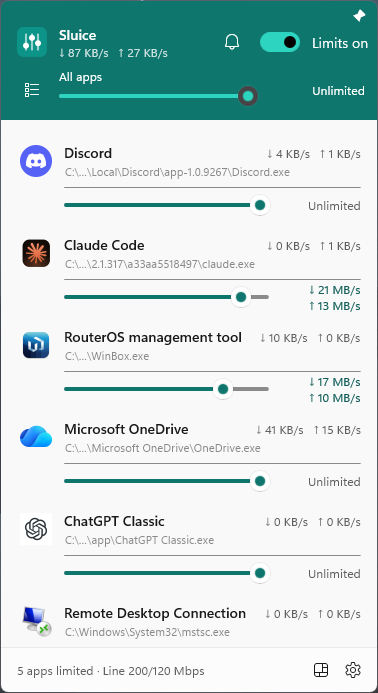
Click the tray icon and the flyout slides up next to the clock, like Windows 11's Quick Settings.

An illustration of the flyout. Each row shows the app's real icon, its live rates, its share of your line and its limit.

See it in action

Inside Sluice

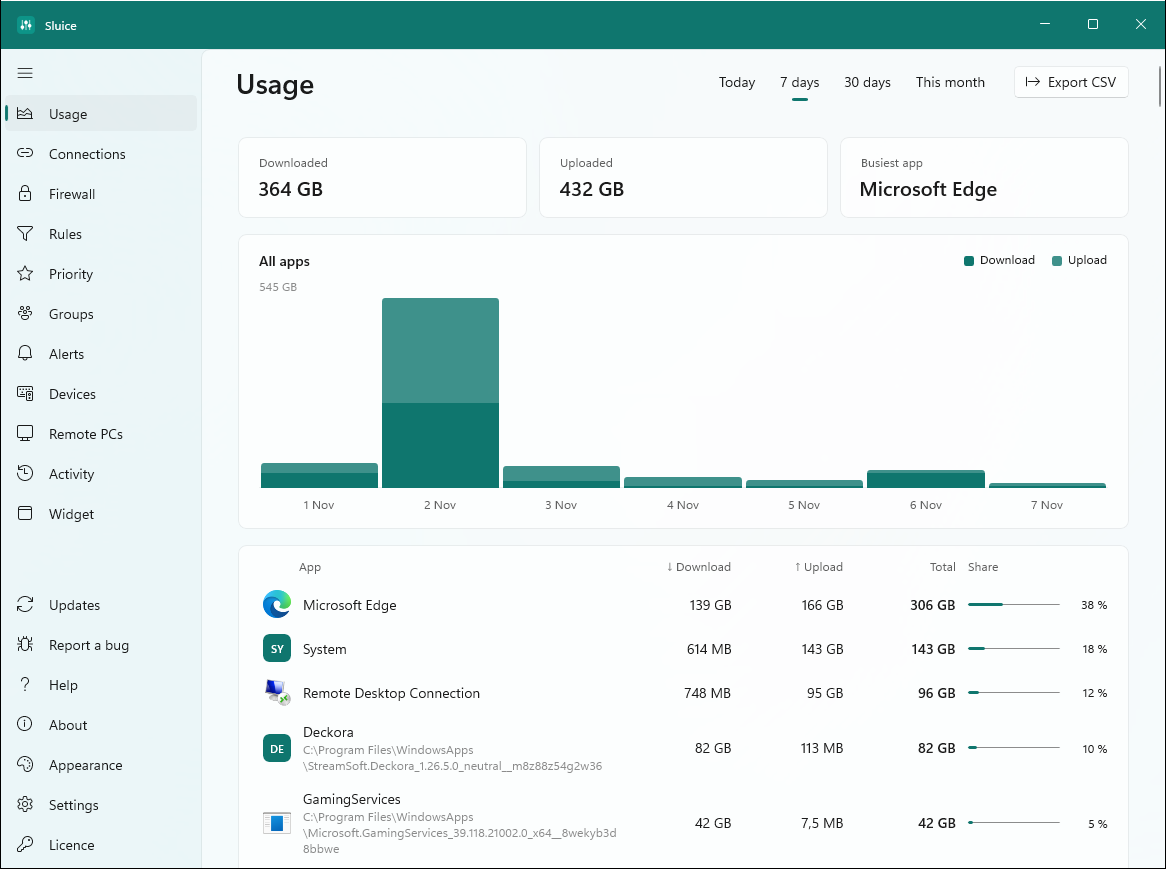
Sluice’s dashboard, and the flyout that opens from the tray icon. Hover the markers to see what each part does, or click to zoom in.

Sluice's Usage page: 7 days of downloads and uploads, the busiest app, a bar chart per day and the apps that used the most data, each with its share of the total. The navigation pane lists Usage, Connections, Firewall, Rules, Priority, Groups, Alerts, Devices, Remote PCs, Activity and Widget, and ends with Updates, Report a bug, Help, About, Appearance, Settings and Licence
Click to zoom
The Sluice flyout from the tray icon: total download and upload with Limits on, an All apps slider, then each app with its live rates and its own limit slider, and 5 apps limited on a 200/120 Mbps line at the bottom
Sluice's Usage page, zoomed in
Features

Everything your connection needs a say in

A limit for every app

From Blocked through 64 KB/s to Unlimited, downloads and uploads both. Tell Sluice your line speed and the sliders scale to it. One switch pauses every limit without losing a setting.

Rules that do it for you

Limits on a schedule ("work hours"), a priority rule that holds everything else back while your call app runs, and data caps by the day, week or month that slow apps down once they've used their share. When rules overlap, the tightest one wins.

A firewall you'll actually use

Block an app with a click, have new apps ask before they connect, or lock the PC down to an allow-list. Profiles switch by network - one for the office, another for the coffee shop.

Alerts worth reading

A new or changed app on the network, a sudden spike, a data cap reached; DNS, proxy or hosts-file changes, ARP spoofing, Remote Desktop sign-ins, the camera or microphone in use, and look-alike Wi-Fi.

Where your data went

Charts and per-app totals for today, the week, the month - and which hosts each app talks to. Export to CSV. Incognito mode keeps an app out of the history.

Know who's knocking

Optional VirusTotal checks of an app's file (only its hash is sent, with your own key) and a daily list of known botnet servers, flagged the moment an app connects to one.

Every device on your network

The devices on your local network, with their makers, and an alert when a new one joins.

A desktop widget

Live download and upload on your desktop in eight styles - round, gauge, graph, pill and more - in your own colours, on a card or with no card at all. Lock it in place and clicks pass straight through it.

Your other PCs

Watch another Sluice PC on your network, or share this one view-only - protected by a token, local network only.

Make it yours

Your colours, your tray, your way

Sluice follows Windows' light or dark theme - or picks its own - and the rest is up to you.

Accent and header coloursNine accent colours, the Windows accent, or any colour you pick - with a coloured, gradient or plain header bar.
One slider for every appThe All apps slider caps every app at once; an app's own slider can still go tighter.
Live speed in the traySwap the logo for your download speed, drawn as large as the tray icon allows.
Pin the flyoutKeep it open beside your work while you watch a download or a call.
The list the way you like it5 to 20 apps, sorted by total, download, upload or name; compact rows; hide the apps you never need to see.
A widget that fits your desktopIts own card, text and highlight colours - or a transparent card, so only the numbers sit on your wallpaper.
Bytes or bitsSpeeds in MB/s, or in Mbps the way your internet plan is sold.
Straight to the fileEvery row shows which program is using the line - click it to open its folder.
How it works

Four steps, two minutes

  1. Install and runSluice sits in the tray next to the clock and starts with Windows if you like.
  2. See who's busyOpen the flyout: the ten busiest apps, live, with their download and upload rates.
  3. Drag a sliderThat app slows to its limit at once; the rest of your connection is untouched.
  4. Set it and forget itAdd rules, block what shouldn't connect, and let the alerts tell you when something changes.
Under the hood

Built on Windows, not around it

Measuring

Windows' own kernel network events, tied to each process - so five browser windows show as one app, and the rates are what actually crossed the wire.

Upload limits

Windows' built-in policy-based QoS, per app. Nothing to install, and the policies are cleared when Sluice exits or the PC restarts.

Download limits

Windows has no per-app download limit, so Sluice paces incoming packets through the bundled WinDivert driver - only while a limit is set. Close Sluice and traffic flows normally.

Pricing

Two ways to own it. Everything included in both.

Try every feature free for 14 days, then pick the plan that suits you. Prices are in Rand, with the US dollar equivalent as a guide; checkout is PayFast's secure payment page.

Yearly

Pay a year at a time, cancel whenever you like

R49 / month
R588 billed once a year
  • Every feature and every update while you're subscribed
  • Renews by itself each year until you cancel
  • Cancel from your StreamSoft account; you keep Sluice until the paid year ends

Both plans include

  • Per-app download and upload limits, and the All apps slider
  • Rules: schedules, a priority app and data caps
  • Firewall, Ask to connect, Lockdown and network profiles
  • Alerts, usage history, connections and devices
  • The desktop widget, themes and colours
  • Watching and sharing other Sluice PCs

Each licence is for one PC. After the free trial, Sluice locks until it is licensed. Need Sluice on several PCs? Talk to us.

Download

Start your free trial

Get Sluice

Download the installer and run it. Sluice starts in the tray next to the clock with every feature on for 14 days once you confirm the email you downloaded it with - no card needed. When you buy, we email your licence key; paste it into Sluice's licence page and you're done.

Download Sluice 1.15.2

SluiceSetup-1.15.2.exe - 62.8 MB - Windows 10/11, 64-bit

What you need

  • Windows 11, or Windows 10 version 2004 or later - 64-bit
  • Administrator rights: measuring per app, QoS and the download driver all need them
  • An internet connection to activate, and now and then to check the licence
  • Antivirus sometimes flags the WinDivert driver, because other software misuses it too. If Windows Security does, choose Allow on device - or leave it out, and Sluice still measures and limits uploads
  • Optional: your own VirusTotal API key for file checks
Questions

Good to know

What happens when the 14-day trial ends?

Sluice locks: it stops measuring and the widget hides until you add a licence. Your settings and history are kept, and everything you set up comes back the moment you do.

Yearly or Lifetime - which should I choose?

Yearly costs R588 a year (R49 a month) and renews until you cancel. Lifetime is R999 once and never renews. If you'll use Sluice for more than about two years, Lifetime costs less.

What does "all future updates included" mean?

A Lifetime licence keeps working with every new version of Sluice we release - new features included. There's no paid upgrade to a "Sluice 2".

How do I cancel the yearly plan?

Sign in to your StreamSoft account and choose Cancel subscription on the order. Sluice stays fully on until the year you've paid for ends, and you won't be charged again.

How many PCs does a licence cover?

One. Moving to a new PC? Choose Deactivate on this PC in Sluice's Settings and licence page on the old one, or ask us and we'll free the licence up. For several PCs, get in touch.

How do I pay, and when do I get my key?

Checkout is PayFast's secure page, so we never see your card details. We email your licence key once the payment has gone through.

Does Sluice slow down my PC or my internet?

No. Measuring uses Windows' own network events. Upload limits use Windows' built-in QoS, and the download driver only touches traffic for apps you've limited. Close Sluice and everything flows exactly as before.

Take back your connection

Fourteen days free with everything on - then R49 a month billed yearly, or R999 once.

Start your free trial